Introduction
Do you have an older PC that isn’t the fastest or doesn’t have much memory, but you still want to get some more life out of it?Maybe Windows 10 has reached end of support, or your hardware just isn’t compatible with Windows 11.
With memory prices still higher than they should be, upgrading hardware isn’t always the best option. This is where lightweight Linux distributions come in. Many Linux distros use fewer system resources, including memory and disk space, than Windows. This makes Linux a good option for getting more life out of an older computer without spending money on new hardware.
There are plenty of Linux distributions to choose from, but not all of them are beginner-friendly or good for everyday use. Some are specifically designed for older hardware, while others are more focused on specific applications or use cases.
Below are three lightweight Linux distributions worth considering if you want to put an older PC back to use. I’ll cover a few different options depending on how old your hardware is and what you’re looking to do with it.
Which Linux Distro Should You Choose?
Best Overall: Debian
Debian is my pick for the best overall Linux distribution for older computers. It offers a great balance of performance, stability, and software availability without requiring a lot of system resources. I installed Debian 13 with Xfce, which is my favorite desktop environment, and found it to be very snappy, even when running in a virtual machine. Debian 13 also includes Xfce 4.20, and my resource testing showed low boot time, memory usage, running processes, and installed disk space.
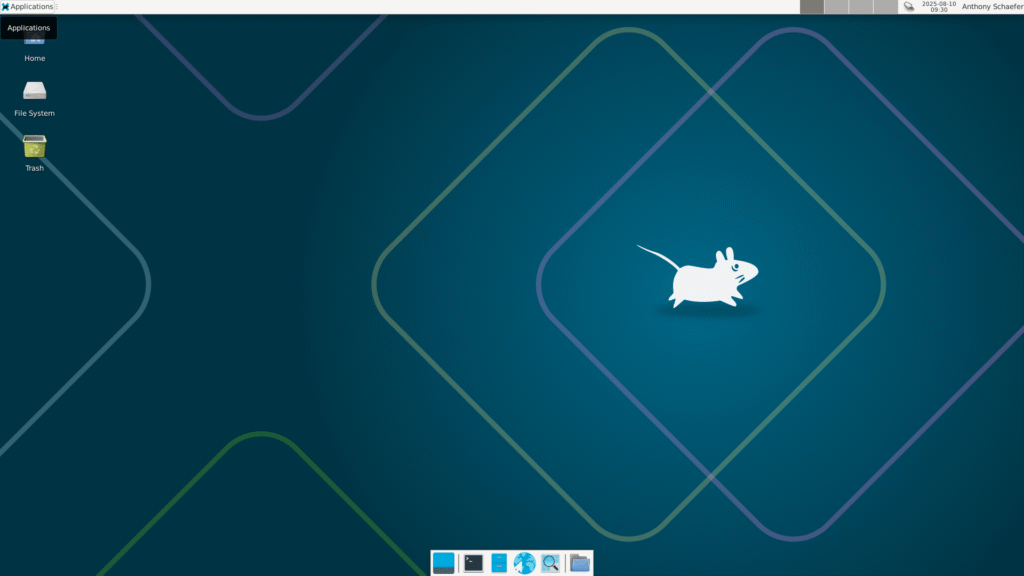
Debian is one of the best choices if you want a reliable desktop for everyday use. It has a large software repository, regular security updates, and a lightweight desktop option that works well on older hardware. If you’re looking for a good all-around Linux distribution without giving up features or usability, Debian is where I’d start.
I looked at some other popular options such as Lubuntu, but found that Debian Xfce used approximately 557MB of RAM and 4.1GB of disk space, while Lubuntu’s minimal installation used approximately 750MB and 5.2GB.
Best for beginners: Linux Mint
Linux Mint is one of the most beginner-friendly Linux distributions, especially if you’re coming from Windows. It has a familiar desktop layout, is easy to install, and doesn’t require much experience with Linux to get started. The most popular desktop environment is Cinnamon, but for this article, I’m testing the Xfce edition, which is more lightweight and a good fit for older computers.
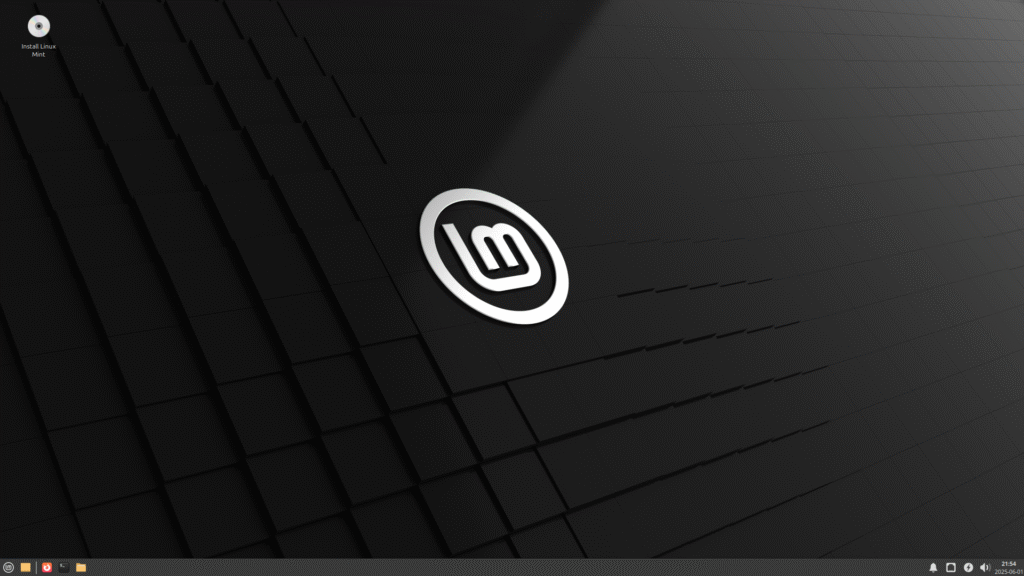
Linux Mint is stable, easy to maintain, and includes many of the applications you’ll need for everyday use, such as web browsing, media playback, and office work. It also has a large and helpful community, making it a great option if you’re new to Linux and want something that is easy to get up and running.
Best for Really Old Computers: antiX
antiX is a lightweight Linux distribution specifically designed for older computers. It uses IceWM and other lightweight window managers instead of traditional desktop environments like Xfce or Cinnamon, helping keep memory and CPU usage low. antiX is also a good option for older 32-bit computers, as it continues to offer 32-bit support. If you have an older PC that struggles with more mainstream Linux distributions, antiX is definitely worth considering.
What Makes a Linux Distro Good for Older Computers?
Let’s walk through a few different things you should consider when choosing a Linux distribution for an older PC. Not all lightweight distros are created equal, and depending on your hardware and what you plan to use the computer for, some may be a better fit than others. We’ll look at memory requirements, desktop environments, CPU performance, storage requirements, and hardware compatibility to help narrow down the options.
Low RAM requirements
This one is pretty straightforward. How much RAM your computer has will help narrow down which Linux distributions are worth considering. If you only have 4GB of RAM, you’ll want to look at a lightweight distro with a desktop environment like Xfce or LXQt. You could even consider running Linux without a desktop environment if you’re comfortable using the command line. With 8GB, most Linux distributions should run just fine, while 16GB gives you plenty of room for everyday tasks and multitasking.
Lightweight desktop environment
The desktop environment can make a big difference in both the look and feel of a Linux distribution, as well as how much CPU and RAM it uses. Some are designed to be lightweight, while others focus more on features, customization, and visual effects.
For example, Xfce and LXQt are popular lightweight desktop environments that are a good fit for older hardware. KDE Plasma offers a modern, feature-rich, and highly customizable experience while still being relatively efficient. Cinnamon and GNOME are two other popular options that generally use more resources than Xfce and LXQt.
| Desktop environment | Description |
| Xfce | Lightweight, good for older hardware |
| LXQt | Very lightweight, minimal resource usage |
| KDE Plasma | Feature-rich, modern, highly customizable |
| Cinnamon | Traditional desktop, familiar to Windows users |
| GNOME | Modern interface, feature-rich, heavier on resources |
CPU requirements and performance
While Linux generally runs well on older hardware, some distributions and desktop environments require more processing power than others. Choosing a lightweight distro with a desktop environment like Xfce or LXQt can help keep things running smoothly without putting as much demand on an older processor.
It’s also worth considering what you plan to use the computer for. Everyday tasks like browsing the web, checking email, and working with documents generally don’t require much processing power. However, modern websites, streaming video, and running multiple applications can still put a strain on older hardware.
Storage requirements
In my Xfce distro testing, I’ve found that storage requirements can vary quite a bit, from just a couple of GB to more than 10GB depending on the distribution. For comparison, Windows 11 requires a device with at least 64GB of storage , although you’ll want more than that for updates, applications, and everyday use.
Most older PCs will have enough storage for a base Linux installation, even with a smaller drive. Where you’ll likely run into limitations is storing your own files, such as photos, videos, and documents, along with installing additional applications.
32 vs 64 Bit Support
Most modern Linux distributions are designed for 64-bit processors, which you’ll find in the majority of computers today. However, if you’re working with a really old PC, it’s worth checking whether the processor supports 64-bit operating systems. Many Linux distributions have dropped support for older 32-bit hardware.
One thing to keep in mind is that just because your computer is running a 32-bit version of Windows doesn’t necessarily mean the processor is limited to 32-bit. It may still support 64-bit Linux. If you do have an older 32-bit-only computer, distributions like antiX are still worth looking at, as they continue to offer 32-bit versions.
Hardware compatibility and driver support
If you’re using a dedicated graphics card or other less common hardware, making sure your Linux distribution supports it is important. Some distributions make it easier to install additional drivers, while others may require a little more work. It’s worth checking hardware compatibility before choosing a distro, especially if you’re using older graphics cards or Wi-Fi adapters.
More Linux Guides and Resources
- Best Xfce Distros: Compare different Linux distributions using the Xfce desktop environment.
- Debian 13 Review: Your detailed Debian experience, once you link to the actual post.
Final Thoughts
Linux is a great way to get more life out of an older computer without having to spend money on new hardware. Whether you’re looking for an easy transition from Windows, a lightweight desktop, or a reliable operating system for everyday use, there are plenty of options available. My overall recommendation is Debian, as it offers a great balance of performance, stability, and usability. Linux Mint is a great starting point for anyone new to Linux, while antiX is worth considering if you’re comfortable with a little more setup.
Don’t be afraid to try a few different distributions to see what works best with your hardware. One of the great things about Linux is that you have plenty of options, and even an older PC may have plenty of life left in it.