Installation
Installation was really straightforward and, like most Linux distributions, walked through the usual steps including keyboard and language selection, software package options, user creation, bootloader configuration, and installation.
First Impressions and Performance
Linux Lite uses Xfce as its desktop environment and has a clean, minimalist look and feel. As a lightweight distro and desktop environment, it doesn’t rely on fancy graphics or visual effects. If you’re looking for a flashy desktop experience, Linux Lite may not be the right choice.
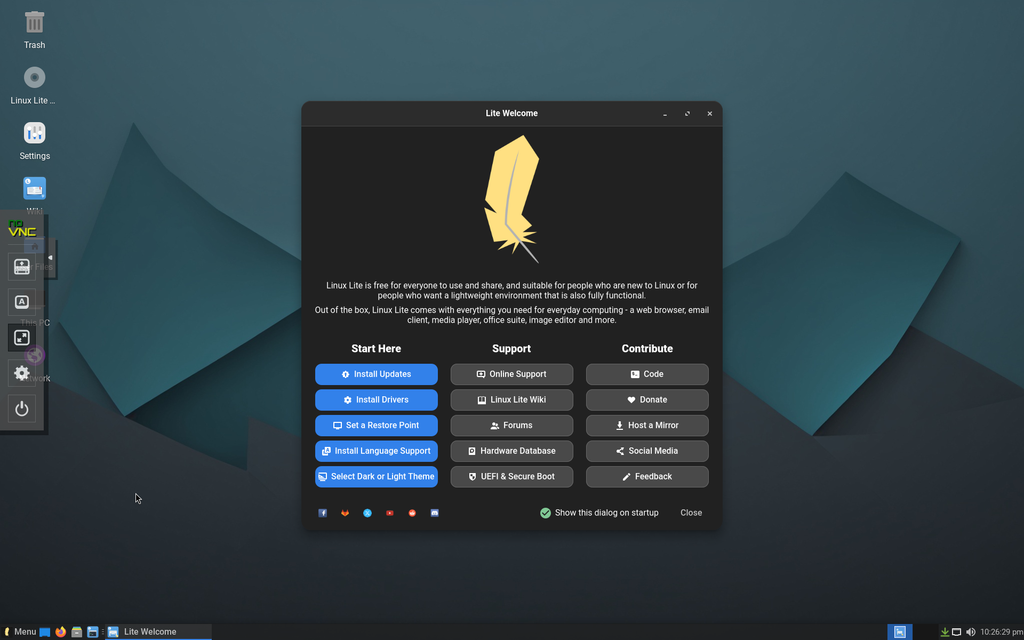
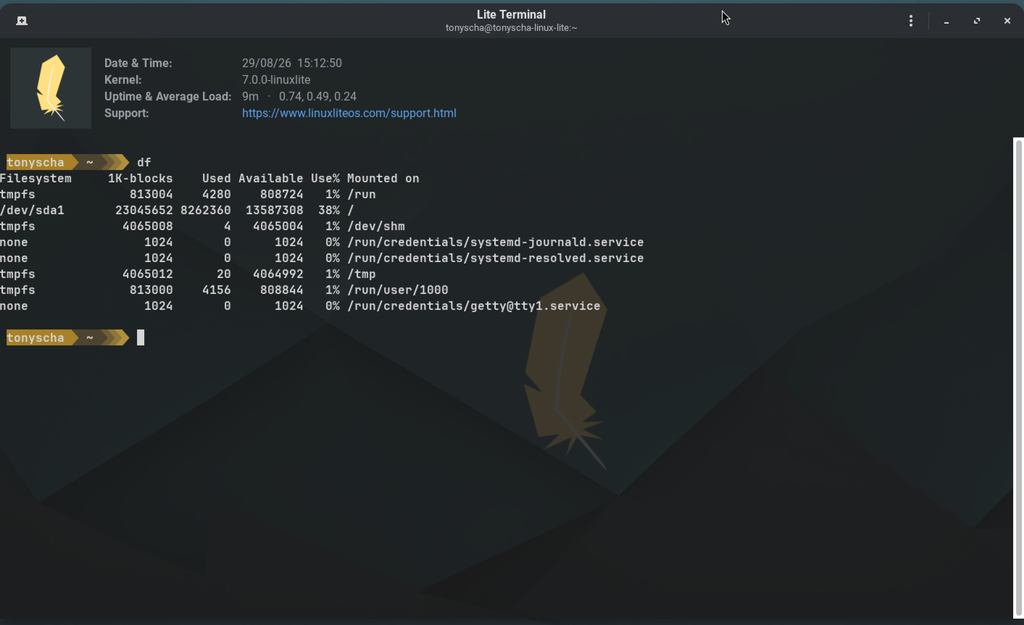
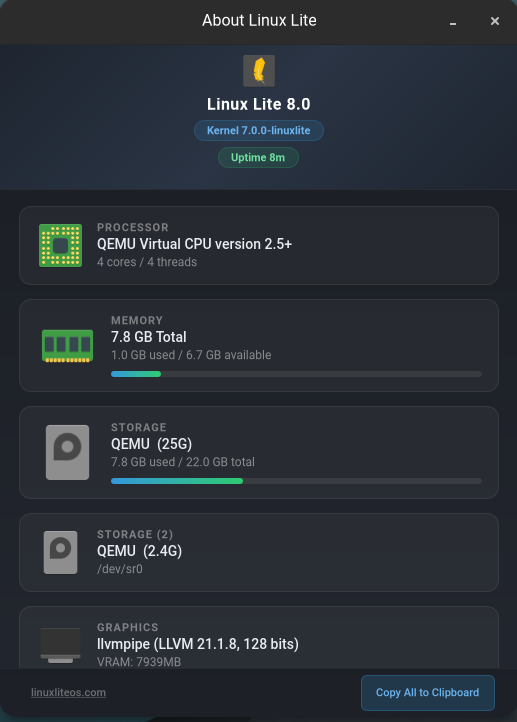
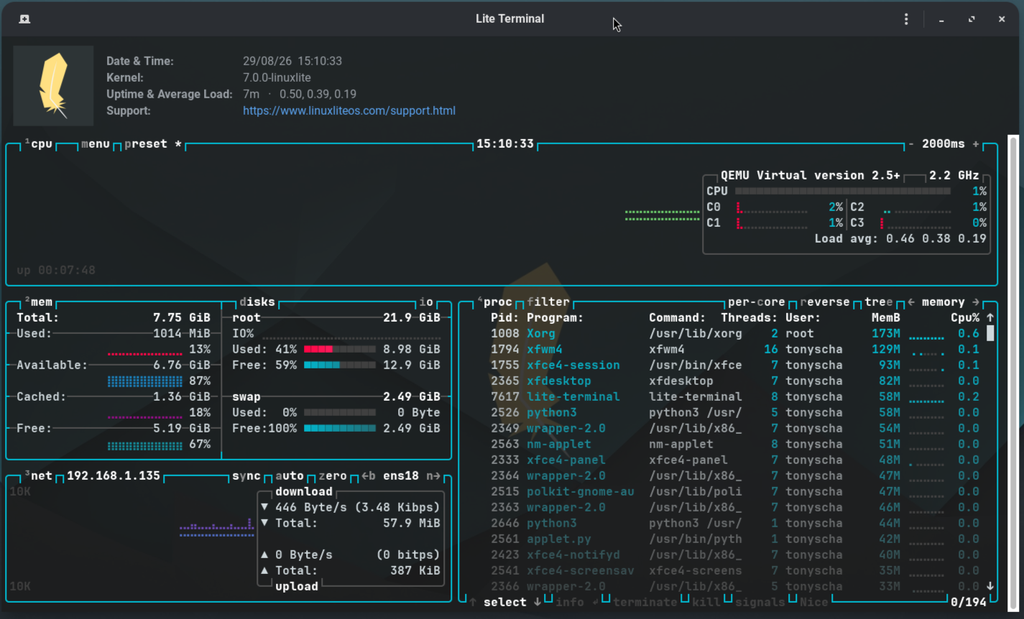
There aren’t any specific issues with the desktop environment or the distro itself. However, something about the overall GUI feels a little less polished than what I’ve experienced with Debian or Fedora. I really liked the custom touches in the Terminal Emulator and System Monitor. The transparency background and other visual enhancements give these basic utilities are great customizations to the distro. One other addition I enjoyed was in the Lite Welcome (aka quick start guide) was the ability to turn on dark mode, along with many other settings.
Software & Package Management
Linux Lite 8.0 comes with the 7.0.0-linuxlite kernel and Xfce 4.20.1. The basic installation also includes popular applications such as Firefox, Thunderbird, LibreOffice, GIMP, and VLC.
Linux Lite provides two options for installing additional software. The first is a simple and straightforward Popular Software section, which includes approximately 100 commonly used applications. This is a good option for newer Linux users who want an easy way to find and install popular software without having to search through thousands of available packages.
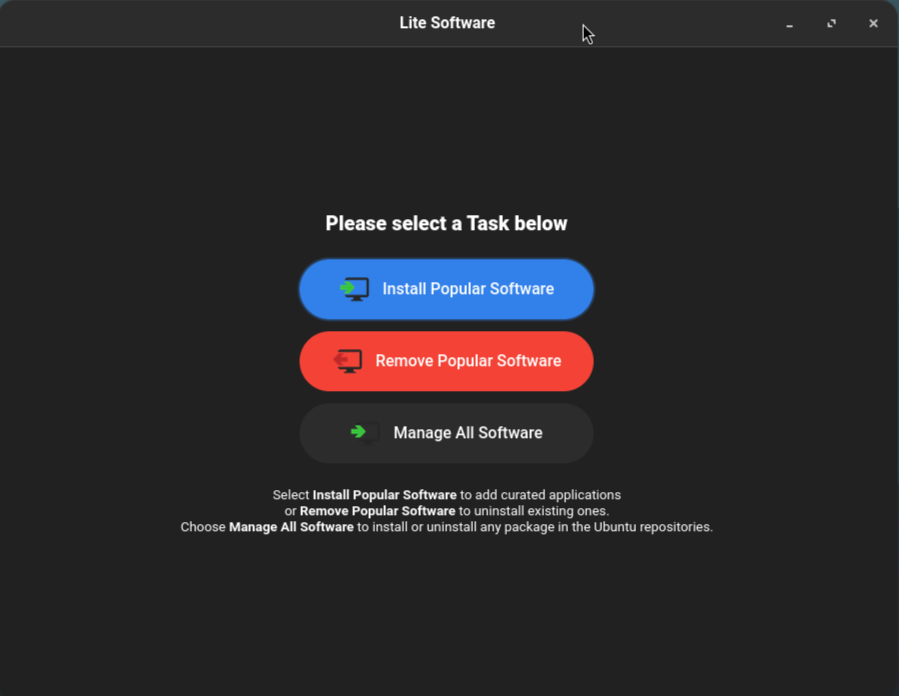
For those who want access to everything available in the repositories, the Manage All Software option provides access to approximately 84,000 applications and libraries. This gives more experienced users the flexibility to search for and install a much wider selection of software.
Pros and Cons
- Pros
- Lightweight and minimalistic Xfce desktop
- Good selection of essential applications included
- Beginner-friendly software installation options
- Custom Linux Lite utilities and visual touches
- Access to a large software repository
- Cons
- Overall desktop interface doesn’t feel as polished as Debian or Fedora
- Minimalist appearance may be too basic for users wanting a more modern-looking desktop
Final Thoughts
Overall, if you are looking for a lightweight Linux distro with a clean desktop, no flashy GUI, and some tasteful customizations, Linux Lite would be a great choice. Xfce keeps resource usage low while still providing a familiar desktop and a good selection of applications right after installation. I also liked some of the custom touches, especially the Terminal Emulator and System Monitor, along with the easy-to-use Popular Software section.
That said, Linux Lite isn’t necessarily the most minimal distro available, and its resource usage is comparable to other Xfce based distros like Debian or Xubuntu. I also found the overall GUI wasn’t quite as polished as Debian or Fedora. Overall, Linux Lite is a solid choice if you want a lightweight, easy-to-use desktop without unnecessary visual effects, but there are other options if you’re looking for the absolute lightest or more polished experience.
Resources
- Website: https://www.linuxliteos.com
- Support Wiki: https://wiki.linuxliteos.com/en/support
- Community Forum: https://www.linuxliteos.com/forums/
One thought on “Linux Lite 8.0 Review”